
WordPress Plugin: Cloudflare Analytics
Version: 1.0.2
Size: ~36KB
Author: Akensai
Description: Complete Cloudflare analytics dashboard for WordPress. View your Cloudflare stats directly in your WordPress admin with hourly metrics, top content tracking, geographic data, browser statistics, and bot detection. No more switching between dashboards.
Features:
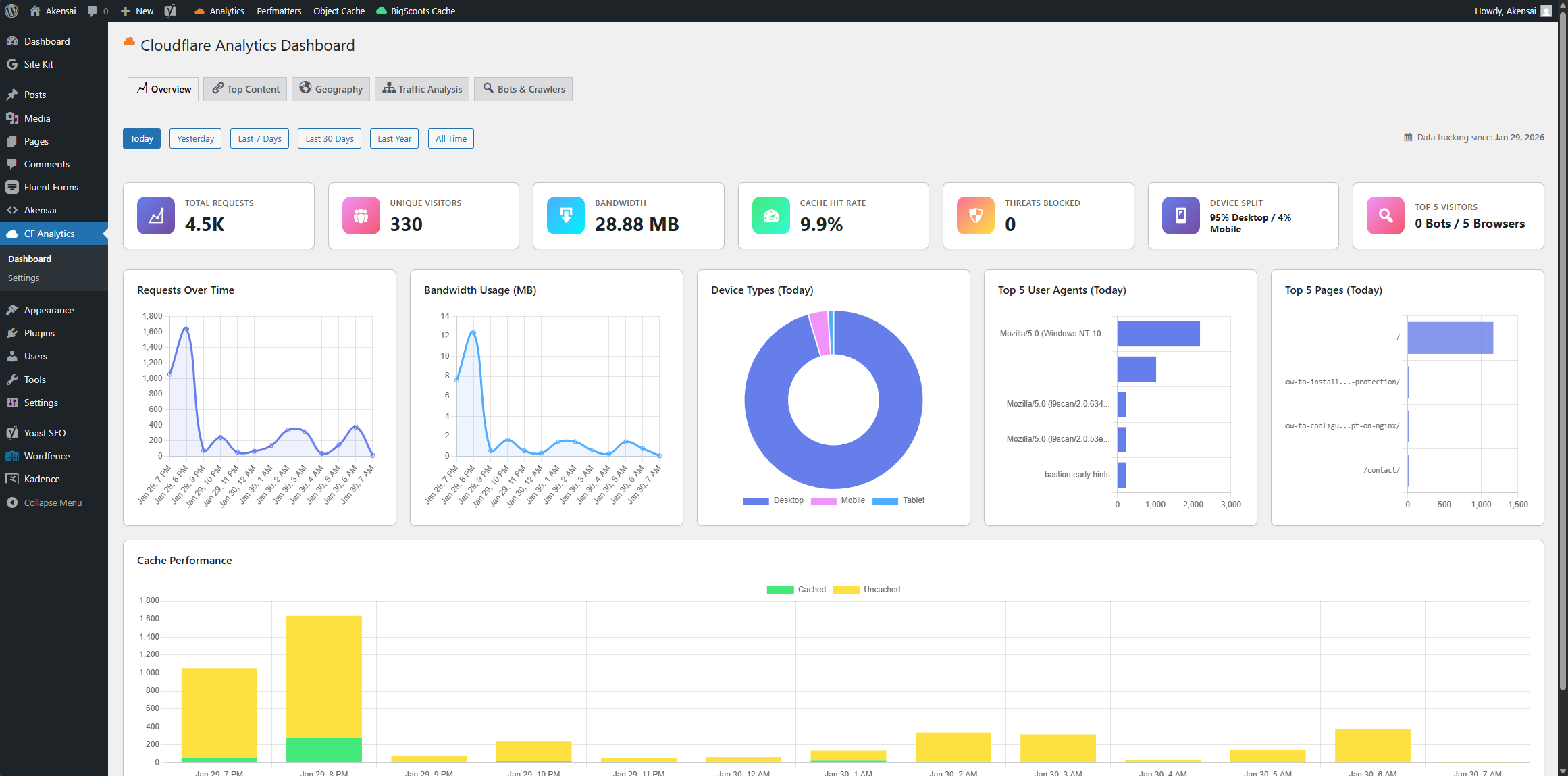
- Real-Time Dashboard – View today’s stats as they happen (updates hourly)
- Content Traffic Analysis – See which posts/pages get the most traffic, filtered to show only WordPress content
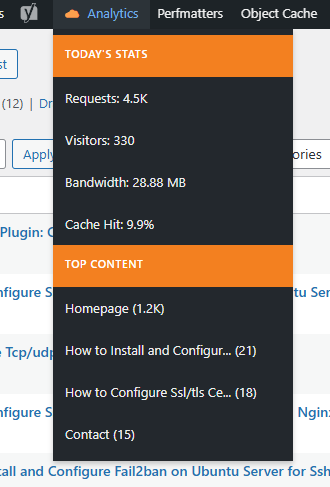
- Admin Bar Widget – Quick stats dropdown in your WordPress admin bar
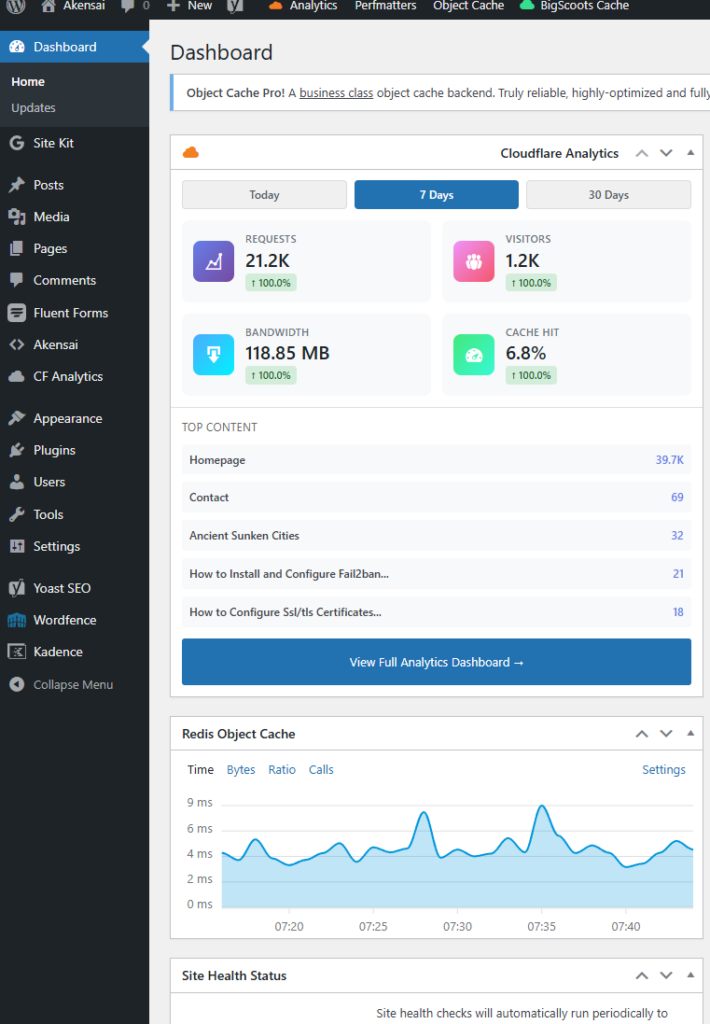
- Dashboard Widget – Key metrics right on your WordPress dashboard
- Geographic Data – See where your visitors are coming from
- Bot Detection – Track crawlers, bots, and potential attacks
- Time Periods – View stats for Today, Yesterday, Last 7 Days, Last 30 Days, Last Year, or All Time
- Mobile Responsive – Works great on all devices
- Automatic Sync – Hourly and daily data synchronization with Cloudflare
Requirements:
- WordPress 5.0 or higher
- PHP 7.4 or higher
- Active Cloudflare account with your site configured
- Cloudflare API Token (instructions provided in plugin settings)
- Zone ID from your Cloudflare dashboard
Installation:
- Download the plugin zip file
- Go to WordPress Admin → Plugins → Add New → Upload Plugin
- Choose the downloaded zip file and click “Install Now”
- Activate the plugin
- Go to Settings → Cloudflare Analytics
- Enter your Cloudflare API Token and Zone ID (see setup guide below)
- Click “Run Initial Sync” to populate your data
Setup Guide:
Getting Your Cloudflare API Token:
- Log in to your Cloudflare dashboard
- Click on your profile icon (top right) → My Profile
- Go to API Tokens tab
- Click “Create Token”
- Use the “Read Analytics” template or create custom token with Analytics:Read permission
- Copy the generated token and paste it into the plugin settings
Finding Your Zone ID:
- Log in to your Cloudflare dashboard
- Select your website
- Scroll down on the Overview page
- Look for “Zone ID” in the right sidebar (under API section)
- Copy this ID and paste it into the plugin settings
Usage:
Once configured, the plugin automatically syncs data from Cloudflare:
- Hourly Sync: Updates current day’s detailed stats every hour
- Daily Sync: Pulls complete daily summaries once per day
- Manual Sync: Use “Sync All Daily Data” button in settings for historical data
Access your analytics through:
- Main Dashboard: WordPress Admin → Cloudflare Analytics
- Admin Bar: Click the cloud icon in top admin bar for quick stats
- Dashboard Widget: See key metrics on your WordPress dashboard
Dashboard Tabs:
- Overview: High-level stats with charts and graphs
- Top Content: Your most popular posts/pages (Content Traffic vs All URLs view)
- Geography: Visitor breakdown by country
- Traffic Analysis: Status codes, browsers, and device types
- Bots & Crawlers: Track bot activity and potential threats
Notes:
- Free Cloudflare plans have limited analytics features (no bot scoring, basic metrics only)
- Data is stored locally in your WordPress database for fast access
- The plugin respects Cloudflare’s rate limits
- All timestamps are in UTC to match Cloudflare’s data
- Content Traffic view only shows your actual WordPress posts and pages (filters out API calls, static files, etc.)
Troubleshooting:
No data showing:
- Verify your API token and Zone ID are correct
- Make sure your site is active on Cloudflare
- Click “Run Initial Sync” in settings to pull data
- Check that your API token has Analytics:Read permission
Today shows low numbers:
- This is normal – “Today” resets at midnight UTC (around 7pm EST previous day)
- Use “Yesterday” or “Last 7 Days” for more complete data
Sync not working:
- Check WordPress cron is functioning (some hosts disable it)
- Verify your server can make outbound HTTPS requests
- Try manual sync from Settings page
If you need help, feel free to contact me. I’ll try my best to help, but if you are the type that shouldn’t be using a computer and that’s apparent in your message, I likely won’t respond.